Caption styles for TikTok: which one to use
 CutGPTPublished · 3 min read
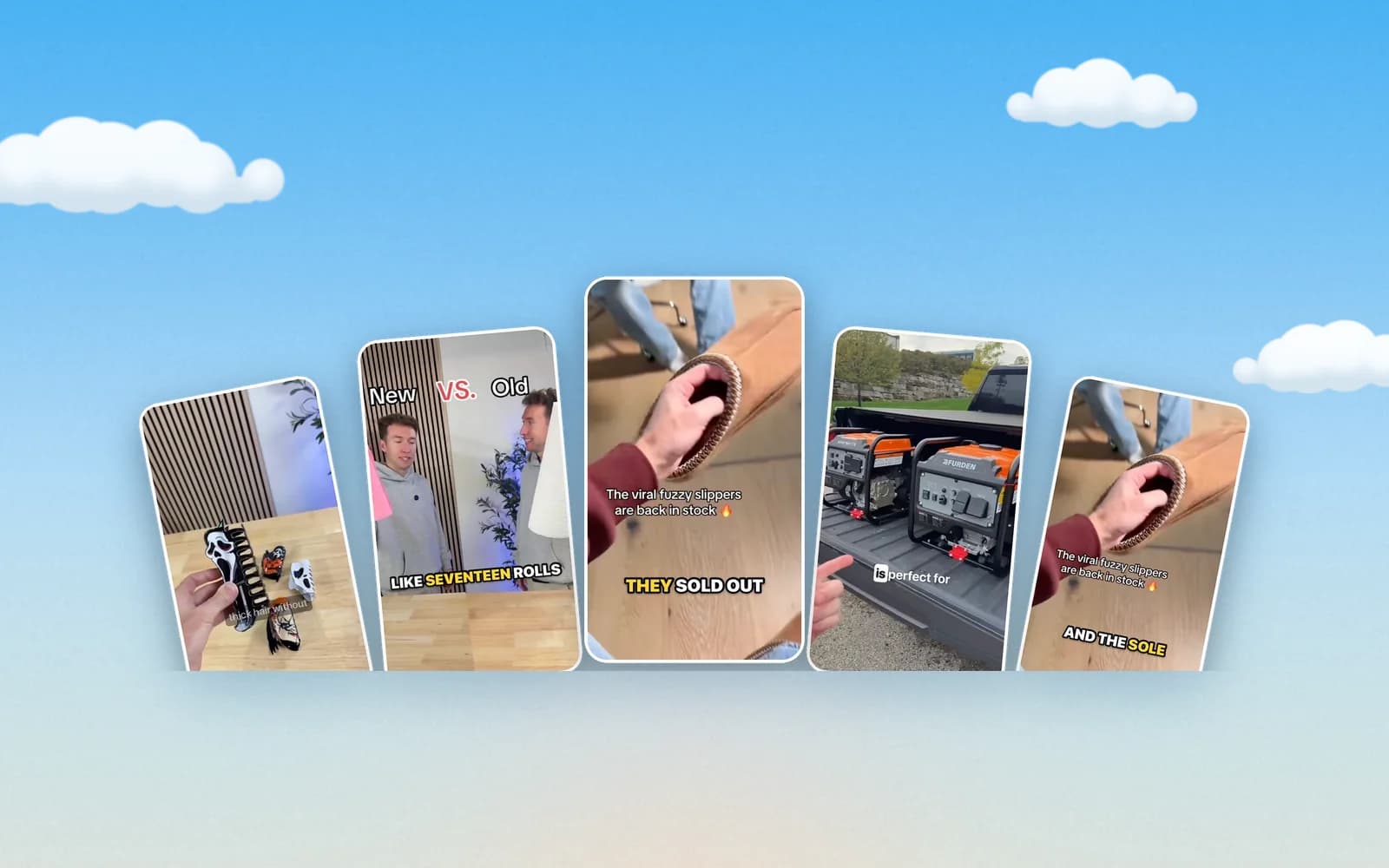
CutGPT captions come in four styles. Here's when to use each one, why short lines read better, and how to move, fix and export your captions.
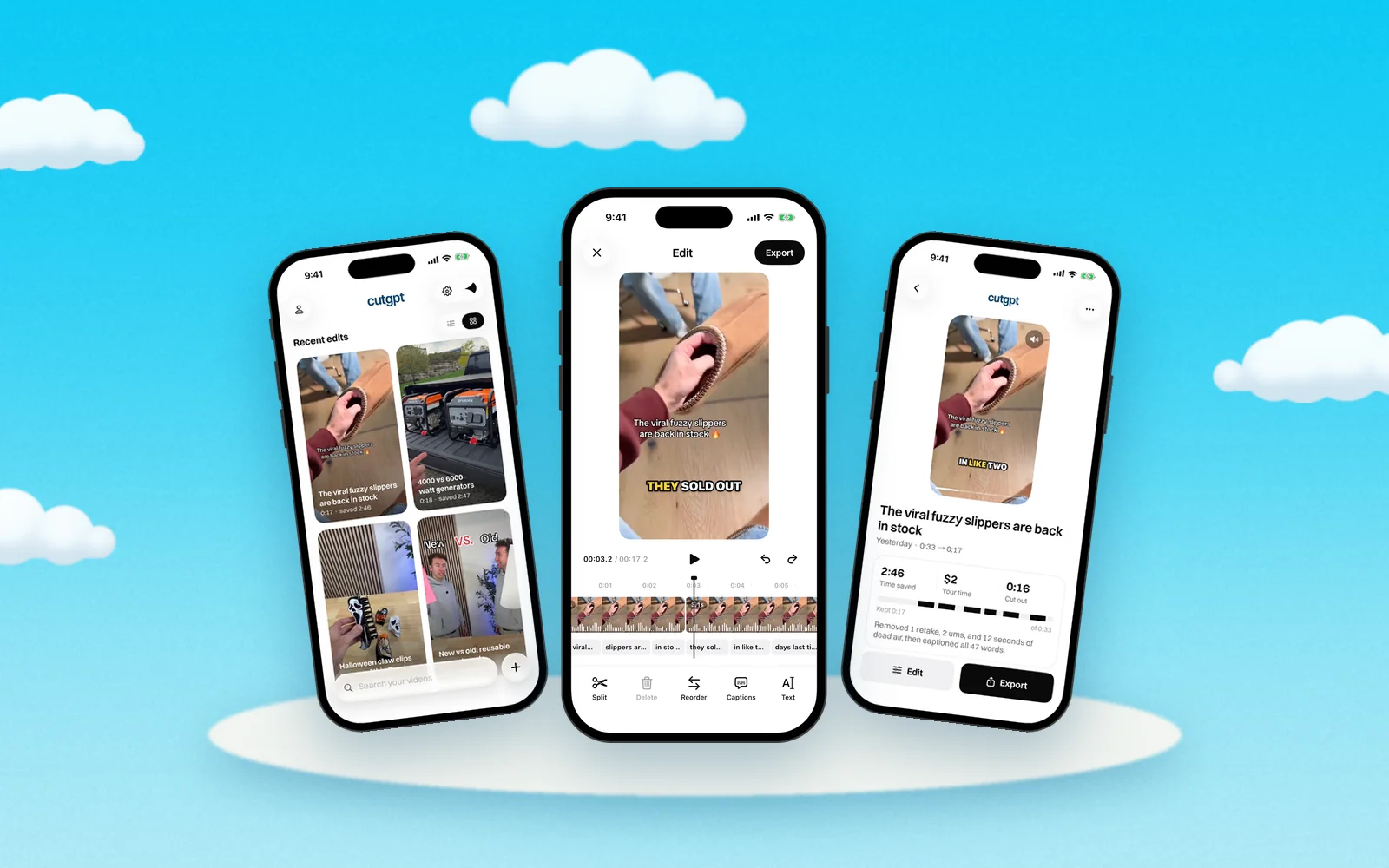
Captions help people follow along with the sound off, and they give the eye something to hold on to. CutGPT captions every edit for you. Your part is picking a style and making sure the words are right.
The four styles
| Style | What it looks like | Good for |
|---|---|---|
| Pop | Bold, uppercase | Hooks, product demos, high-energy videos |
| Karaoke | Highlights each word as you say it | Fast talkers, lists, step-by-step tips |
| Boxed | Text on a dark box | Busy or bright backgrounds |
| Minimal | Small, lowercase | Calm videos where the product should lead |
You set your caption style in Settings. Here's how to choose.
Pop
Bold and uppercase. Pop is hard to miss, which makes it a good fit for product demos and videos with a lot of energy. It reads at a glance on a small screen.
Karaoke
Karaoke highlights the word you're saying, so viewers can track exactly where you are. It helps when you talk fast or run through a list, like prices, steps or features.
Boxed
Boxed puts the text on a dark box, which keeps it readable over whatever is behind it: a white wall, a bright window, a busy counter. Use it when plain text gets lost in the background.
Minimal
Small and lowercase. Minimal stays out of the way, so it suits calm videos and setups where the product or the scene should be the focus.
Why short lines read better
Each CutGPT caption shows at most three words, or about 20 characters. Lines break at sentence ends and commas, so each one reads like a natural chunk of speech.
Short lines suit a phone screen:
- Viewers can take in three words at a glance, then look back at you and the product.
- A short line covers less of the frame.
- Short chunks change in step with your voice, so the words on screen match what people hear.
Move and resize
On the result page in the web app, you can move captions up or down and change their size. A few things to check:
- Keep captions off your face and off the product.
- Stay clear of the bottom of the frame, where short-video apps show your username and post text.
- Don't make them so big that they run under the buttons on the right side of the screen.
Fix a caption word
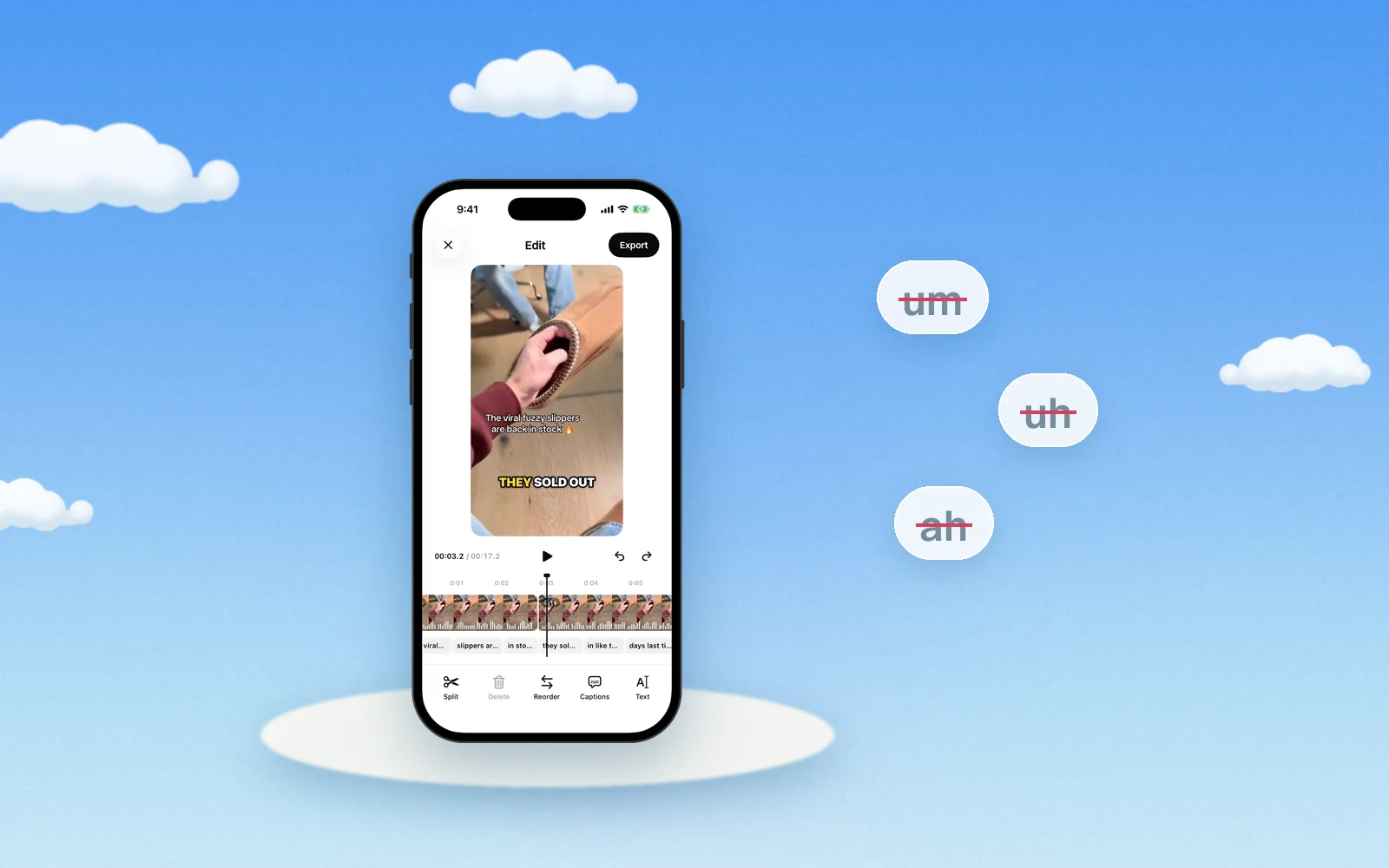
Speech recognition can trip on names, like your brand or your product. In the editor, double-click a word to change its caption text. Use it to fix a name, correct a spelling, or hide a word from the captions. Only the caption changes. Your audio stays the same.
Burn them in, or not
When you export, the Burn in captions switch decides whether the captions become part of the video.
- Burn them in if you'll post the MP4 as it is. The captions you styled show up wherever the video plays.
- Leave them off if you'll add text in another app, or you want a clean copy without captions.
Burned-in captions are part of the picture. Fix names and spelling in the editor before you export.
Want to see the styles on your own take? Open the web app. For what happens before the captions, read how CutGPT edits a video.
Questions
Try it on your own video
Your first 3 edits are free, right in your browser. Nothing is uploaded.