How to remove ums and uhs from a video
 CutGPTPublished · 3 min read
CutGPT cuts ums, uhs and other fillers in every edit. Here's which ones it removes, how it catches the ones the transcript leaves out, and how to keep or fix one.
Fillers are the sounds you make while you think. A few can sound natural. A lot of them slow a short video down and bury your point. Finding each one by hand means scrubbing through the whole take. CutGPT does that part for you.
Which fillers CutGPT removes
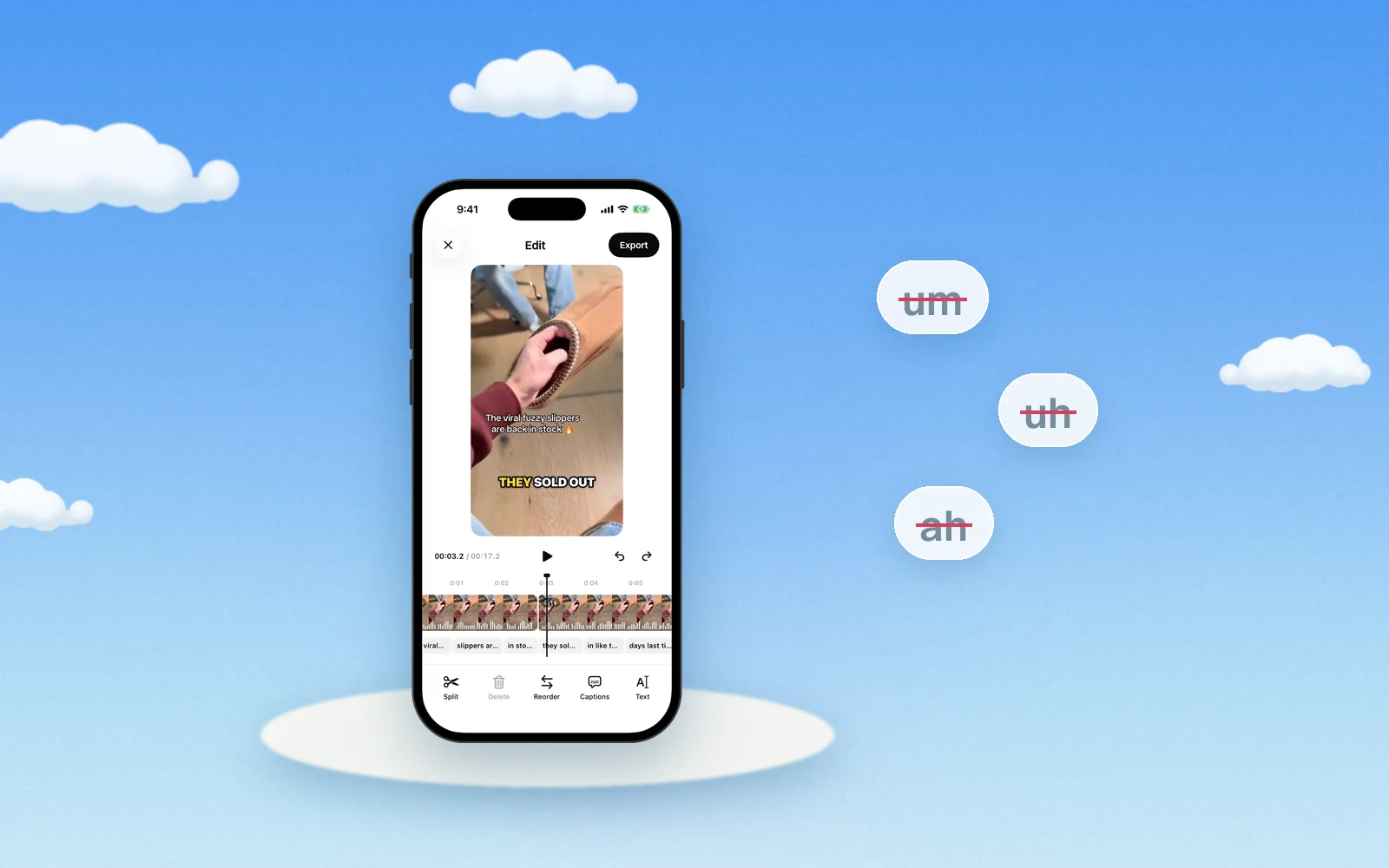
CutGPT removes these fillers:
- “um”, “umm” and “uhm”
- “uh” and “uhh”
- “er” and “erm”
- “ah”, “ahh” and “eh”
- “hmm”, “hm”, “mm”, “mmm” and “mhm”
Words like “like” and “you know” aren't on the list, so CutGPT doesn't cut them as fillers. They're often part of a real sentence. If one bothers you, cut it by hand in the editor.
How CutGPT finds the ums the transcript leaves out
In the web app, speech recognition runs on OpenAI's open-source Whisper model. Whisper tends to write clean, readable text, the way a person would type up a transcript. So it often leaves “um”s out, even when you can hear them. If CutGPT only read the transcript, those sounds would stay in your video.
That's why CutGPT also checks the audio. It looks for short voiced sounds, about 0.18 to 1.2 seconds long, that no word in the transcript covers. It treats those sounds as fillers and cuts them with the rest. On the result page, they're listed as fillers like any other.
When to keep fillers
Cutting every filler isn't always the right call. You might want to keep them when:
- The video is casual and unscripted, and a few “hmm”s are part of how you talk.
- You're reacting to something, like a first taste or a first try, and the “hmm” is the reaction.
- You're answering a question on camera, and an “um” while you think makes the answer feel unscripted.
To keep fillers, turn off Remove ums and uhs in Settings before you start the edit. CutGPT then skips the filler step. Retakes, restarts, slates and dead air are still cut.
If you only want to keep one or two, leave the setting on and bring those back by hand.
Fix one by hand
CutGPT might cut a sound you wanted, or miss one you didn't. Here's how to fix either in the web app:
- On the result page, scan the list of cuts. Each one shows its reason. Click a filler to jump to it and hear it.
- Open the editor. Cut words are struck through.
- Click a struck-through word to bring it back. Click a word that's still in to cut it.
- Shift-click the word before it to play from there and check how it sounds.
- Press ⌘Z or Ctrl+Z to undo a change.
Fillers are one of several things CutGPT cuts. See how CutGPT edits a video for the full list, or open the web app and try it on a take.
Questions
Try it on your own video
Your first 3 edits are free, right in your browser. Nothing is uploaded.