How CutGPT edits your video, step by step
 CutGPTPublished · 4 min read
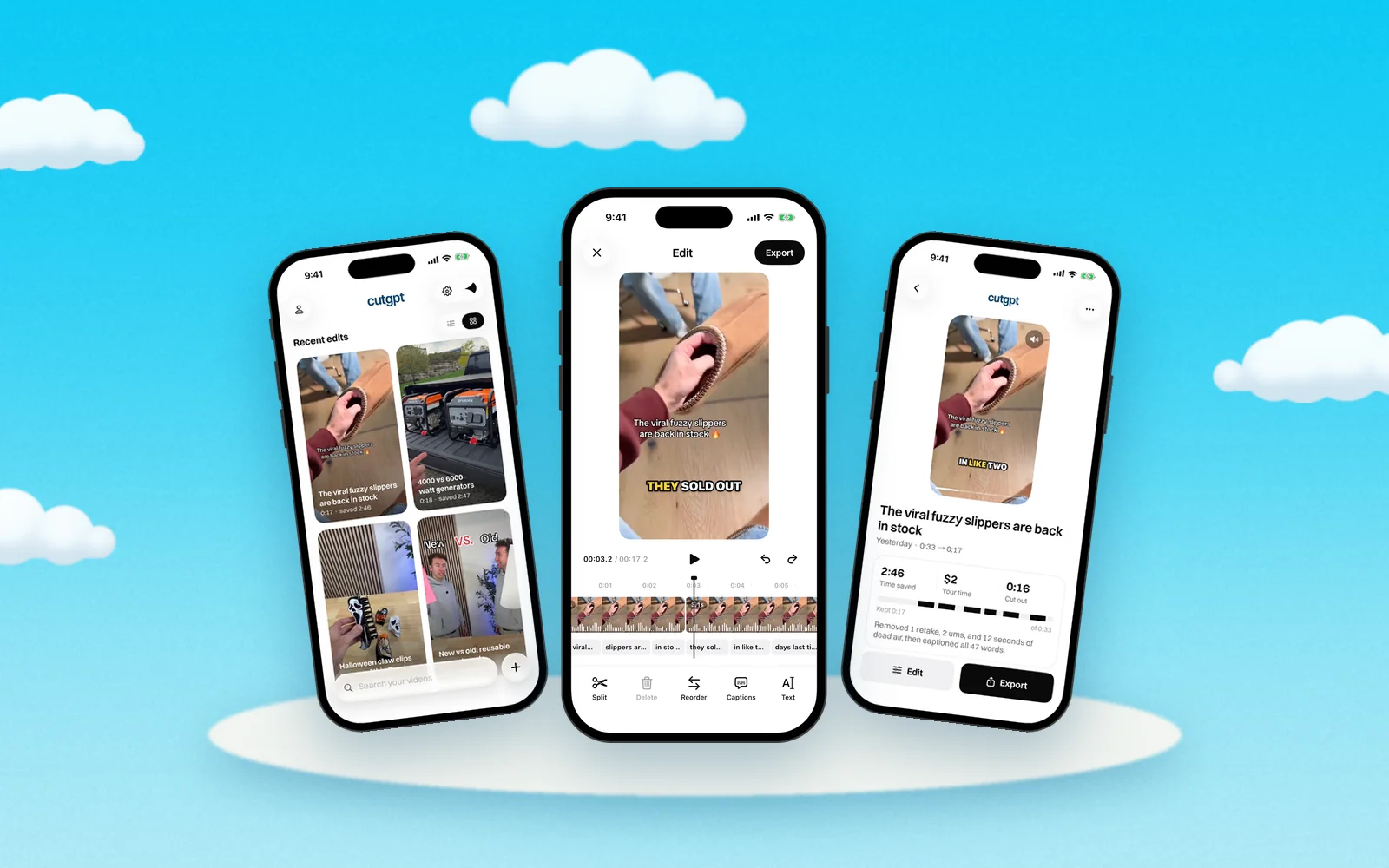
What happens to your take between import and export: the transcript, each kind of cut, the captions, and what you can still change before you post.
You film one long take, mistakes and all. CutGPT turns it into a tight, captioned edit. Here's the order it works in.
1. It transcribes your video
First, CutGPT transcribes your video and gives every word a timestamp: when it starts and when it ends. Every cut after this is planned from that word-by-word transcript.
2. It tightens the timing
Transcribers tend to give a word the silence that comes before it. So CutGPT tightens each word's timing to the part where you're actually speaking. That way the cuts follow your voice, not the gaps around it.
3. It splits your speech into phrases
Next, it breaks the transcript into phrases wherever you pause or finish a sentence. CutGPT works phrase by phrase when it looks for restarts, retakes and slates.
4. It removes the mistakes
Then it takes out the parts you didn't mean to keep:
| Cut | What it sounds like | What CutGPT does |
|---|---|---|
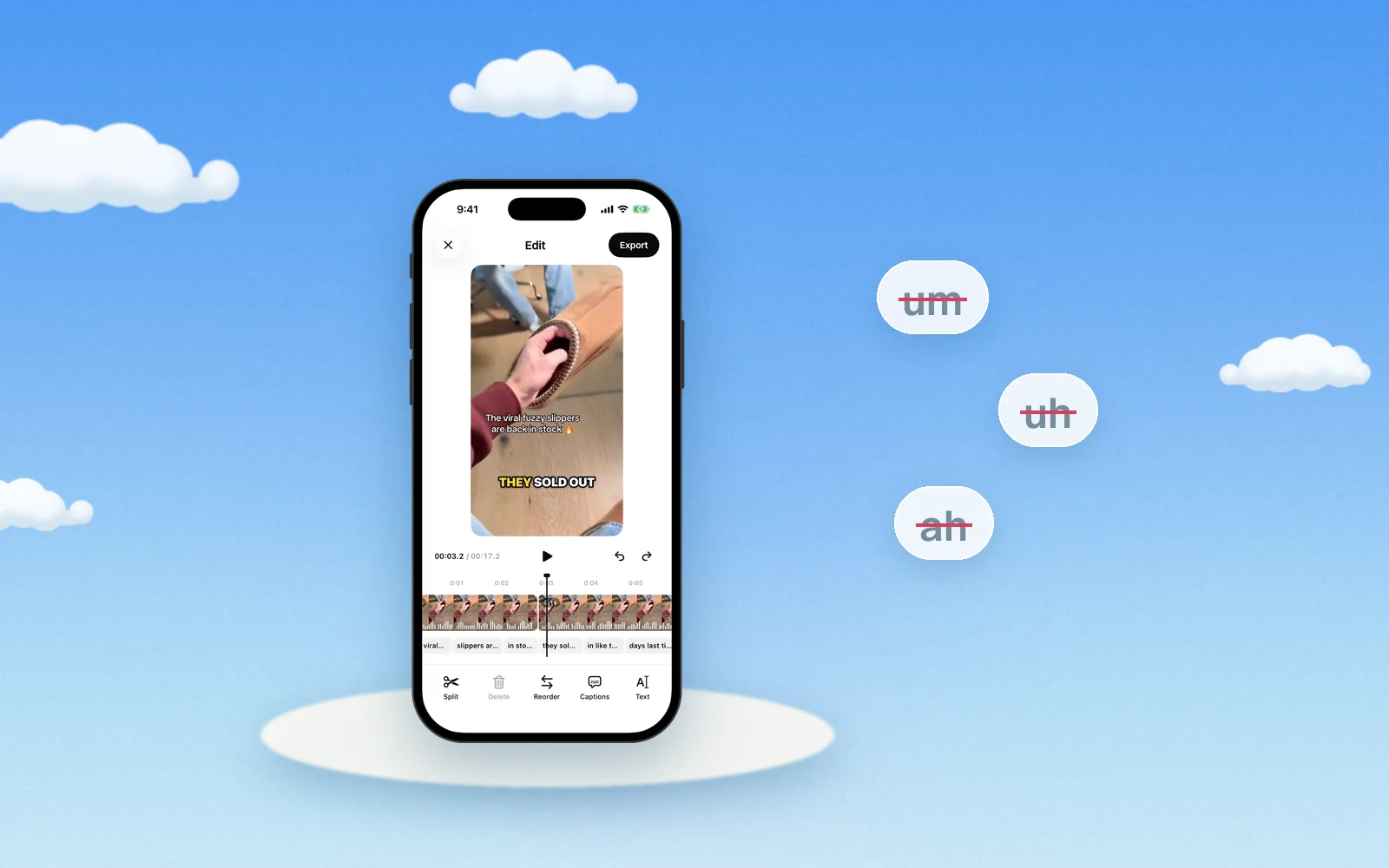
| Filler | “um”, “uh”, “hmm” | Removes the sound |
| Restart | “Wait, let me start over.” | Removes the cue and the attempt just before it |
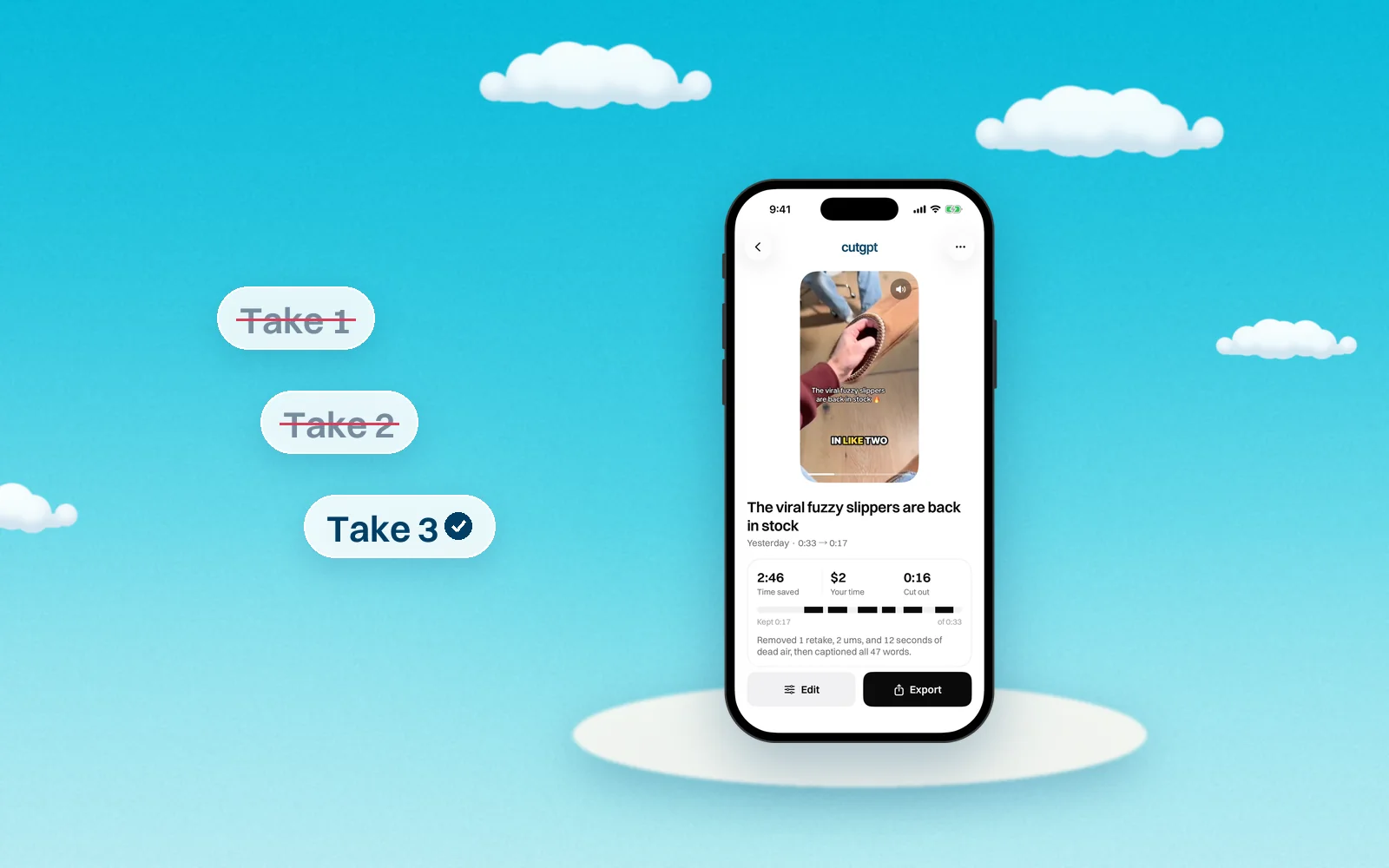
| Retake | The same line, said again | Removes the earlier take and keeps the last one |
| Slate | “Okay.” before your first line, “Cut.” after your last | Removes both |
On the web, the speech model tends to leave “um”s out of the transcript. So CutGPT also looks for short voiced sounds that no word covers and treats them as fillers. For the details, see how to remove ums and uhs and how to cut retakes.
5. It trims the dead air
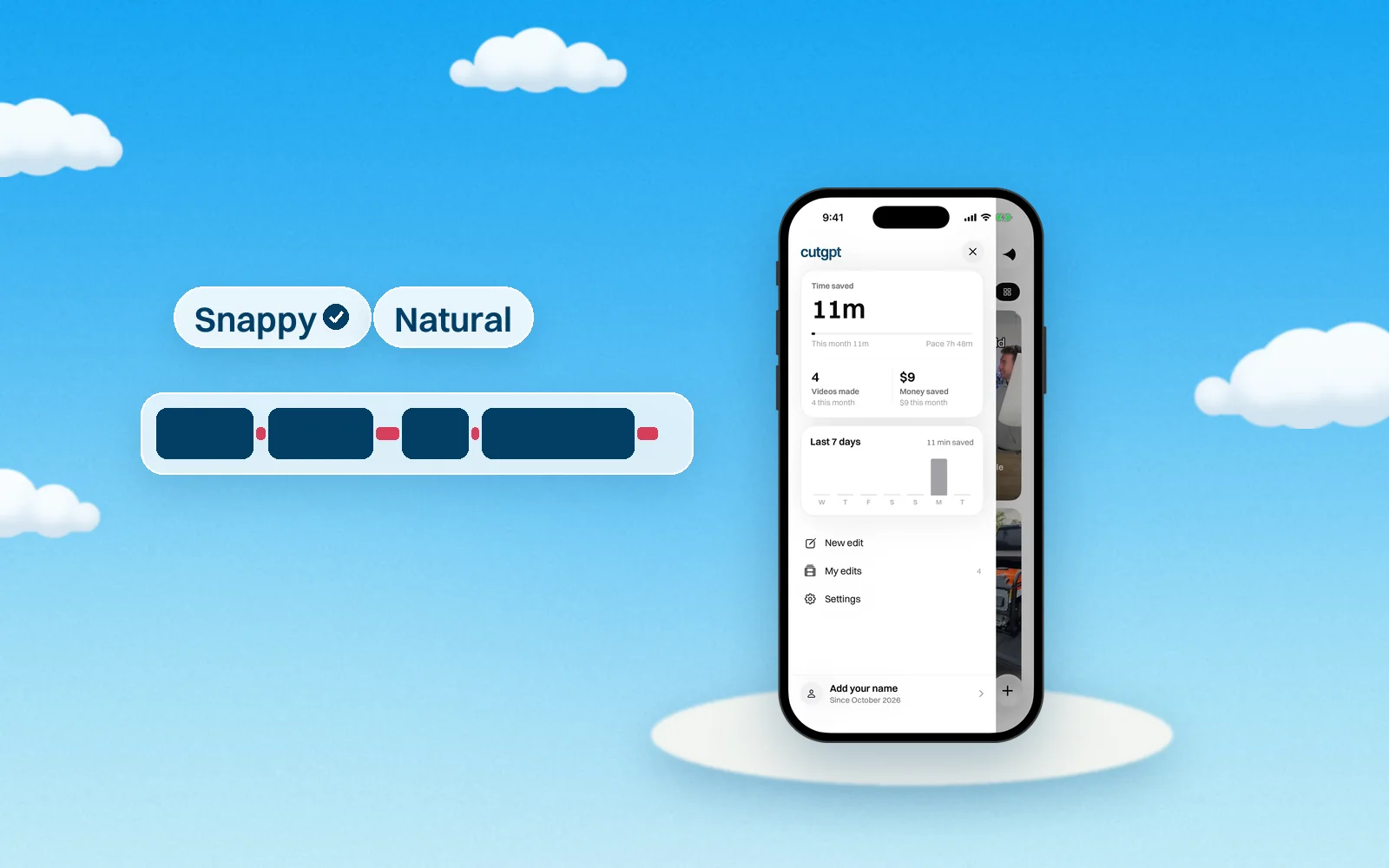
What's left gets joined back together. Natural pauses between words stay. Longer silences, the dead air, are trimmed down to a breath.
How tight those cuts are depends on your cut pace. Snappy is the default and keeps pauses up to 0.3 seconds. Natural keeps pauses up to 0.45 seconds. Jump cuts: how tight should you cut? compares the two.
6. It adds captions
Last, CutGPT captions the edit. Each caption shows at most three words, or about 20 characters. Captions break at sentence ends and commas, so they read naturally. There are four styles: Pop, Karaoke, Boxed and Minimal. Read caption styles for TikTok to pick one.
What you can change afterward
In the web app, the result page plays your edit. The original video plays and skips over the cuts.
The page also shows how much was cut and lists every cut with its reason: retake, restart, slate, filler, dead air, or cut by you. Click a cut to jump to it. You can move the captions up or down and change their size here too.
To change a cut, open the editor:
- Cut words are struck through. Click a word to cut it or bring it back.
- Double-click a word to change its caption text.
- Shift-click a word to play from there. Space plays and pauses.
- ⌘Z or Ctrl+Z undoes, and ⇧⌘Z redoes.
- Reset to CutGPT's cut undoes all your hand edits.
When it looks right, export an MP4 at 720p, 1080p or Original. CutGPT never upscales. You can burn the captions in or leave them off.
Where it runs
There are two ways to use CutGPT. Both use the same cut planner. They're separate, so edits don't sync between them.
- In your browser. The web app runs on your computer. Your video, transcript and edits stay in your browser and are never uploaded. The speech model downloads once, then runs on your GPU, or on the CPU if your browser doesn't support WebGPU. More in edit videos in your browser without uploading.
- On your iPhone. The iPhone app records with your camera and microphone and transcribes with Apple's on-device speech recognition. Edits are stored on the phone, and finished edits save to Photos. If no on-device engine is available, it falls back to Apple's speech recognition servers.
Ready to try it? Open the web app and add a take. For filming tips, read how to film a product video in one take.
Questions
Try it on your own video
Your first 3 edits are free, right in your browser. Nothing is uploaded.