Edit videos in your browser without uploading
 CutGPTPublished · 3 min read
The CutGPT web app transcribes, cuts and exports your video on your own computer. Here's how that works, which browsers work best, and the trade-offs.
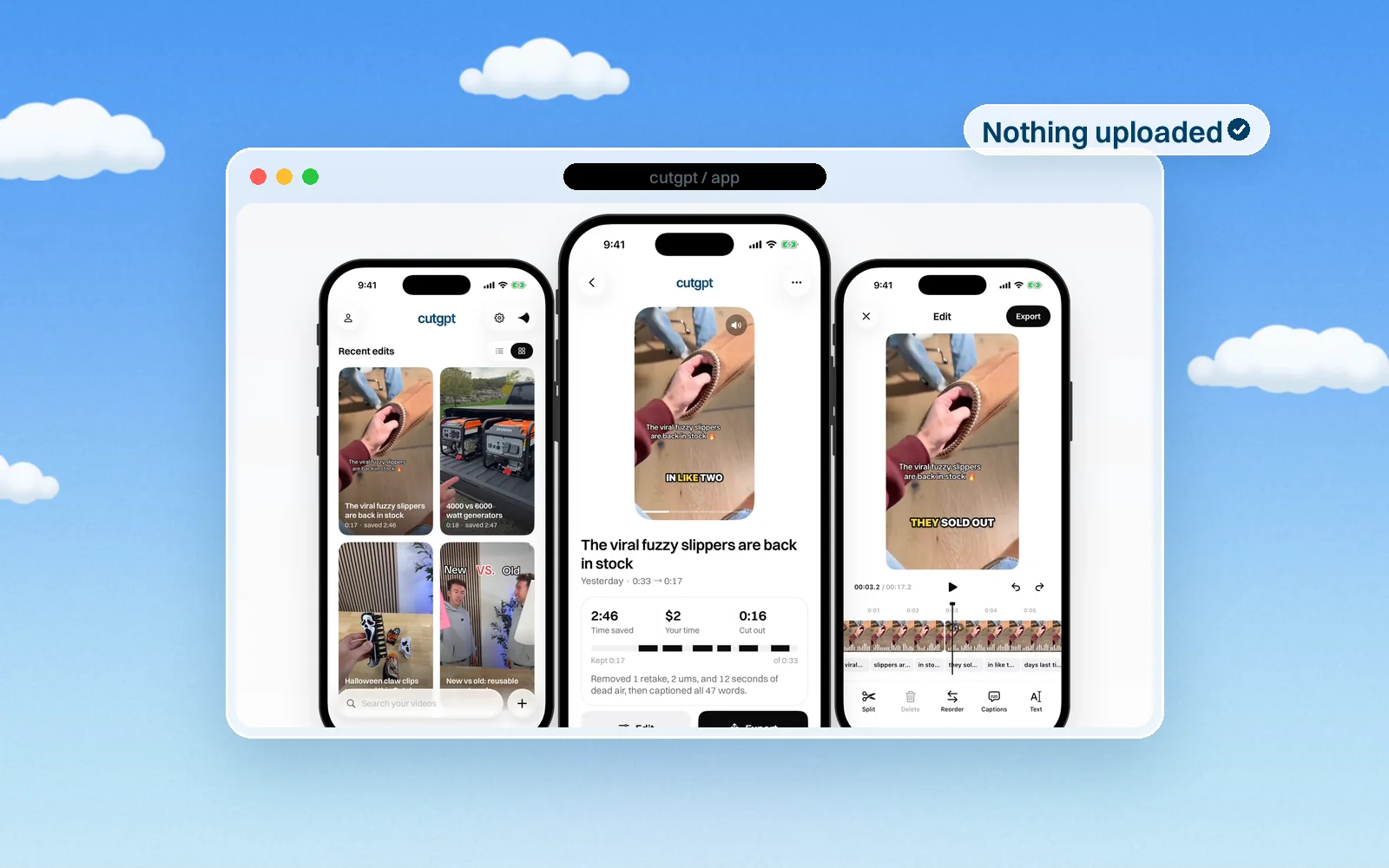
Your video, its transcript and your edits stay in your browser. None of it is uploaded to CutGPT. Every step, from transcription to export, runs on your computer.
The speech model runs in your browser
To cut a video, CutGPT first needs a transcript with a timestamp for every word. The web app gets one from Whisper, OpenAI's open-source speech recognition model. It runs right in your browser with Transformers.js.
If your browser supports WebGPU, Whisper runs on your computer's GPU. If not, it runs on the CPU. That works too, but it's slower.
By default, CutGPT uses Whisper's base.en model. If you'd rather have speed, there's a smaller Fast model in Settings.
A one-time download
The first time you edit, your browser downloads the speech model from Hugging Face. It's about 200 MB when it runs on the GPU and about 80 MB on the CPU. The Fast model is smaller. Your browser caches the model, so you only download it once.
The ONNX Runtime files that run the model load from the jsDelivr CDN. These downloads are normal web requests, so those servers see your IP address and browser. No video or audio is sent.
Your edits live in your browser
Your videos, transcripts and edits are saved in your browser's storage (IndexedDB) on that computer. Your settings, like cut pace and caption style, are saved in the browser too.
To remove your edits, use Delete all edits in Settings, or clear the site's data in your browser.
There are no advertising trackers on the site. Visits are counted with Vercel Web Analytics, which uses no cookies and can't identify you. Vercel, which hosts the site, also keeps standard request logs.
Export happens on your computer too
When you export, CutGPT builds the MP4 on your computer, with H.264 video and AAC audio. Choose 720p, 1080p or Original. CutGPT never upscales your video.
In Chrome and Edge, you pick where to save before the export starts, and the file is written straight to disk. Other browsers download the file when it's done. Either way, keep the tab open until the export finishes.
Which browsers work best
| Browser | What to expect |
|---|---|
| A recent Chrome or Edge on a computer | Works best. You pick where to save, and the export is written straight to that file. |
| Safari | Needs version 26 or later. The export downloads when it's done. |
| Any browser without WebGPU | Transcription runs on the CPU and takes longer. |
The web app is made for desktop browsers. On an iPhone, use the iPhone app instead.
The trade-offs
Keeping everything on your computer comes with a few trade-offs:
- Edits stay in that browser. They aren't backed up, and they don't move to another computer or browser. Clearing the site's data deletes them. Export the finished videos you want to keep.
- English only, for now. The web speech models are English-only.
- Your computer does the work. Without WebGPU, transcription takes longer. And the tab has to stay open while you export.
- No sync with the iPhone app. The web app and the iPhone app are separate, so edits don't move between them.
Ready to try it? Open the web app. To see what happens to your take, read how CutGPT edits a video. Questions? Visit the help center.
Questions
Try it on your own video
Your first 3 edits are free, right in your browser. Nothing is uploaded.